![SalonInteractive-Logo-Color-Full-RGB.png]](https://pages.saloninteractive.com/hs-fs/hubfs/SalonInteractive-Logo-Color-Full-RGB.png?width=267&height=40&name=SalonInteractive-Logo-Color-Full-RGB.png)
If you already have a SalonInteractive account, log in and go to your dashboard. Skip to instructions for 🔗 Set up Phorest features
NOTE: To set up a new SalonInteractive account, you’ll need a valid email address and your beauty supplier account number.
Start your account setup here: https://app.saloninteractive.com/salon_signup?c=81718
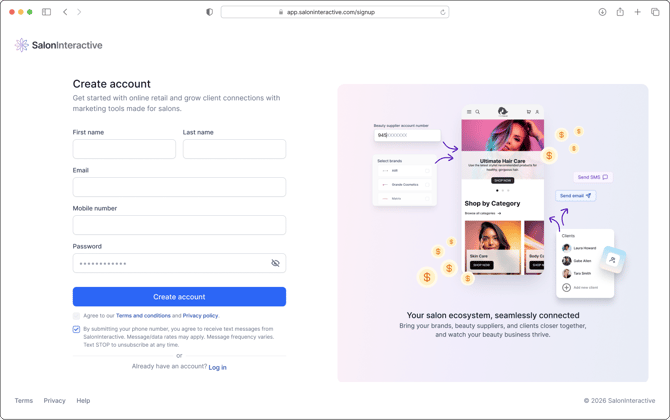
Fill in your information, create a password, and click Create account.
Add your business information and click Next.
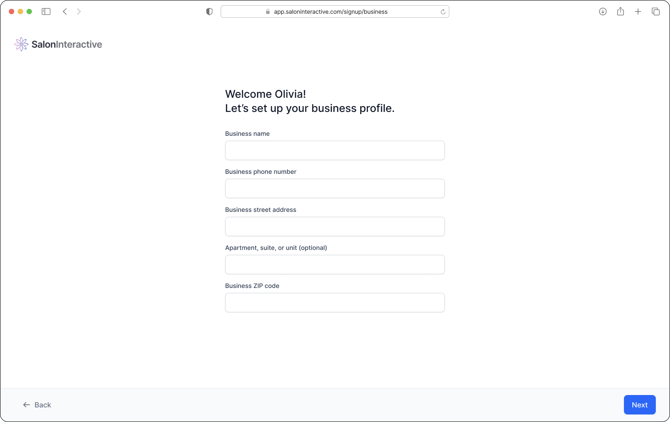
The next two pages will ask a handful of questions about your business. Your answers to these questions help us better tailor features and communications to and for you. However, if you skip any of these questions, you can fill them in later.
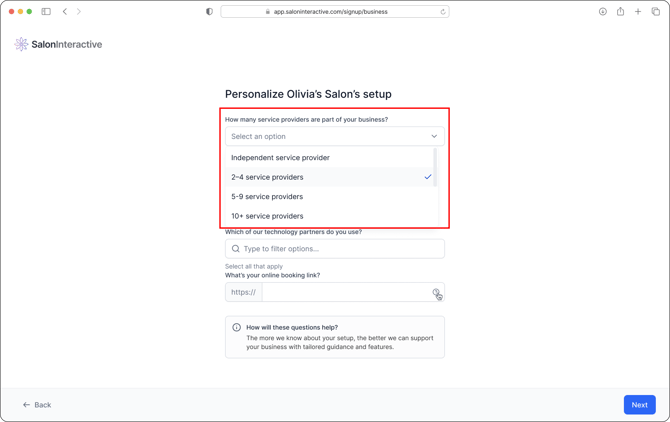
For the first question, use the dropdown to find and select the number of service providers in your business.
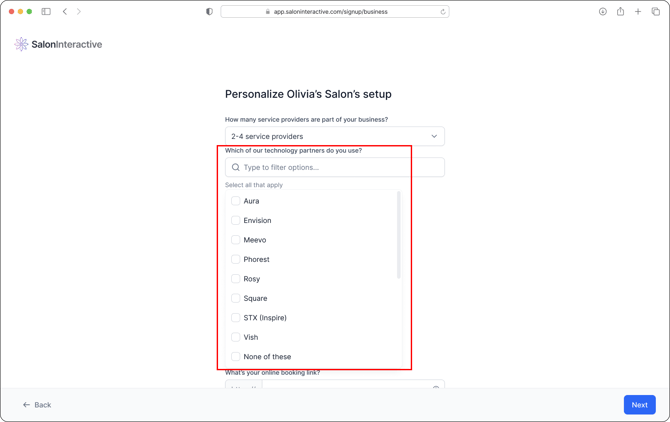
In the next section, use the dropdown to find and check all the technology partners you use.
Be sure to select Phorest.
In the last section, add your booking link. If you don’t offer online booking, add a link where clients can reach you, such as your social page or website contact form.
When done, click Next.

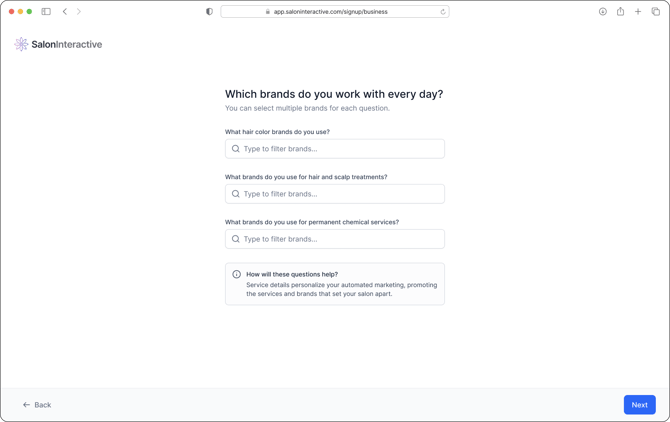
Service details personalize your automated marketing, promoting the services and brands that set your salon apart.
In each section, add the brands you use for:
- Color
- Hair and scalp treatments
- Permanent chemical services (other than color)
When done, click Next.
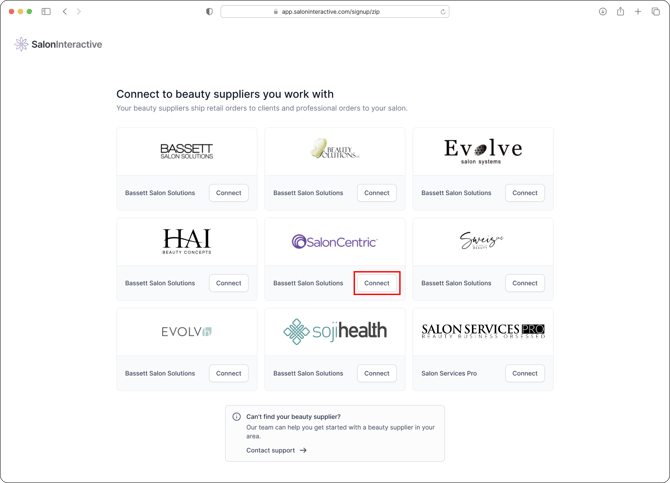
Your beauty suppliers ship online retail orders to clients and professional orders to your salon.
Based on your ZIP code, the beauty suppliers available in your area will be displayed on the next page. Find your beauty supplier and click Connect.
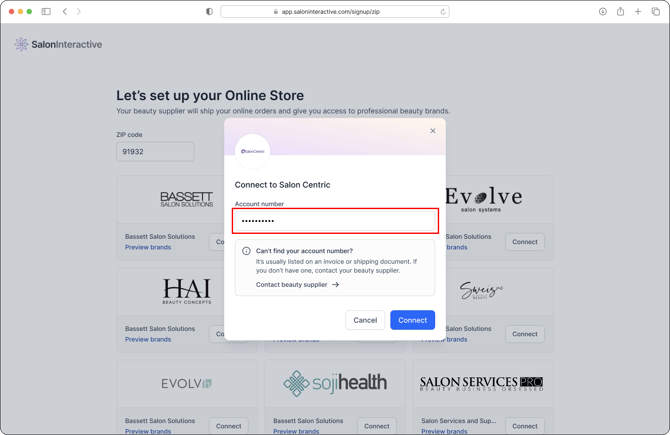
Enter your beauty supplier account number and click Connect. Your page will refresh, and you will see that your chosen supplier has been connected.
You can connect as many SI beauty suppliers as you want. Once connected, salon ordering will also be enabled for all professional brands available through participating service providers.
Click Next to continue.

Select the brands you would like to carry on your Online Store. A checkmark means that the brand is selected. Click Next when done.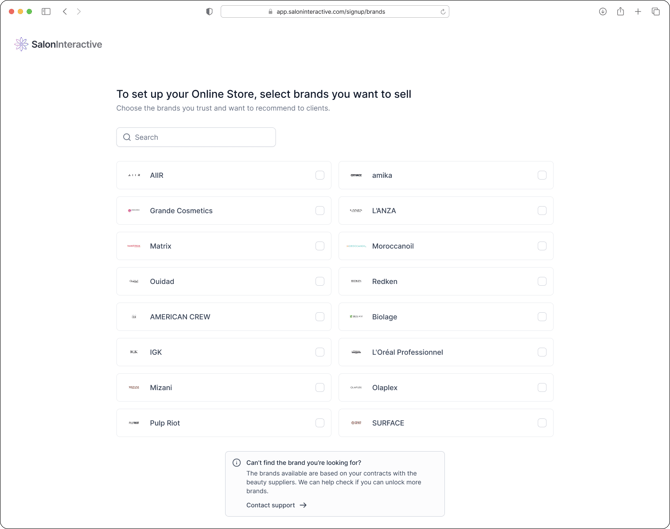
Give it a moment while the system customizes your storefront, dashboard, and marketing tools.
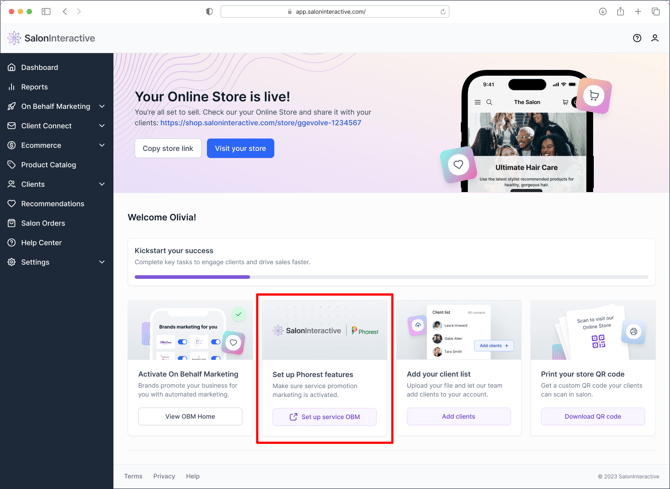
Congratulations, your Online Store is now live! 🎉
Look for and click the Set up Phorest features tile on your dashboard.
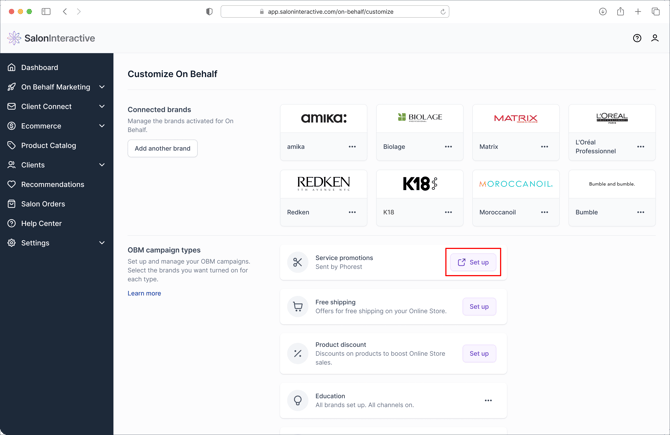
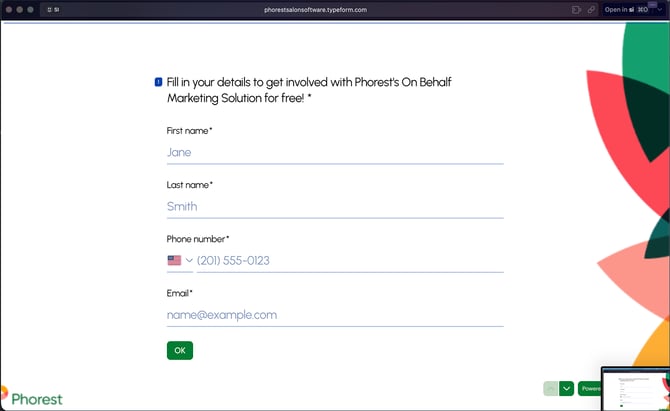
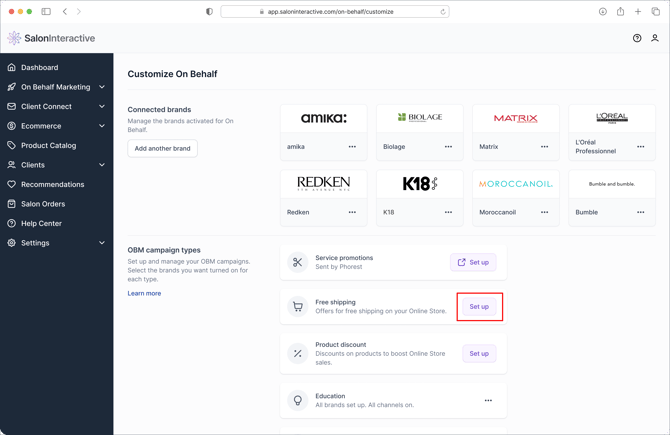
On the Customize On Behalf page, find the Service promotions section and click Set up. Fill out Phorest’s service promotions form and click OK.
To set up retail OBM, for each campaign type, click Set up, then add the brand or brands you’d like to include at the top of the slide-out. Click Save when done.
%20copy.png?width=670&height=435&name=OBM%20settings%20default%20(1)%20copy.png)
To edit existing retail OBM campaigns, follow the instructions here:
🔗 How do I manage On Behalf Marketing?
NEXT STEPS
To use On Behalf Marketing and/or send personalized Product Recommendations, you’ll need to add your clients to your SI account. Click here to give permission to Phorest to provide SalonInteractive with your current client list. We’ll handle the upload from there.
Now go check out your Online Store, customize as desired, then grab your link and start sharing with your clients.
Here are some resources you may find useful:
-
How do I make Product Recommendations? (desktop)
-
What is the SalonInteractive mobile app, and how do I use it? (Product recs on mobile)
- Top 10 Ways to Promote Your Online Store
If you need help with any step of the setup, we’re here for you. Give us a call at 312-300-0553 or open a case at support@saloninteractive.com.